Crocevia brings your Google and Microsoft 365 calendars together: see all your events in the same view and create, move or delete them from here. Every change goes straight to the original calendar.
On your computer and your phone, with your Google or Microsoft account. The Android app, with widgets and reminders that work even offline, is coming to Google Play.
How it works
From scattered calendars to one agenda, in three steps.
Sign in
With your Google or Microsoft account: no new account needed. With the app you can also connect your calendars directly from your phone, without the portal.
Link your calendars
Add more Google or Microsoft accounts and choose which calendars to see. Each one has its own colour; read-only ones, like holidays, have a padlock.
Work from here
Create, move and edit events in Crocevia and answer invitations: every change goes straight to the Google or Microsoft calendar you chose.
Upcoming
Your next meeting is one tap away.
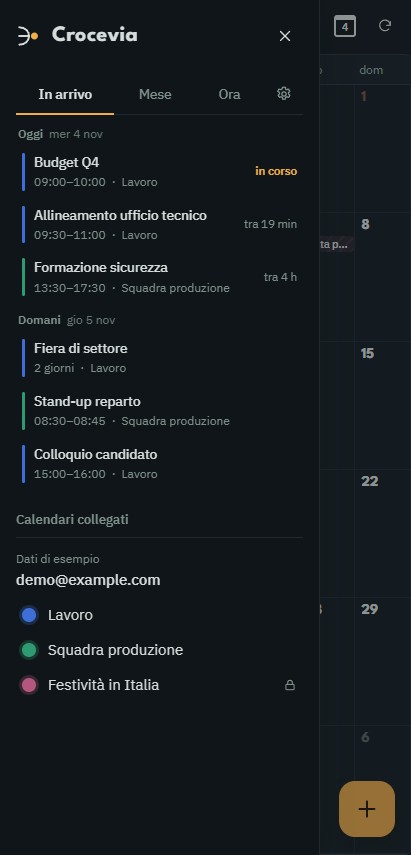
In the left-hand menu, Upcoming lines up today's and tomorrow's events from all your calendars, with the time left. If an event has an online meeting, you join it from there.
1
Meet, Teams, Zoom and Webex
“Join meeting” opens the event's link: on your phone, in the meeting app if it's installed.
2
Invitations without switching apps
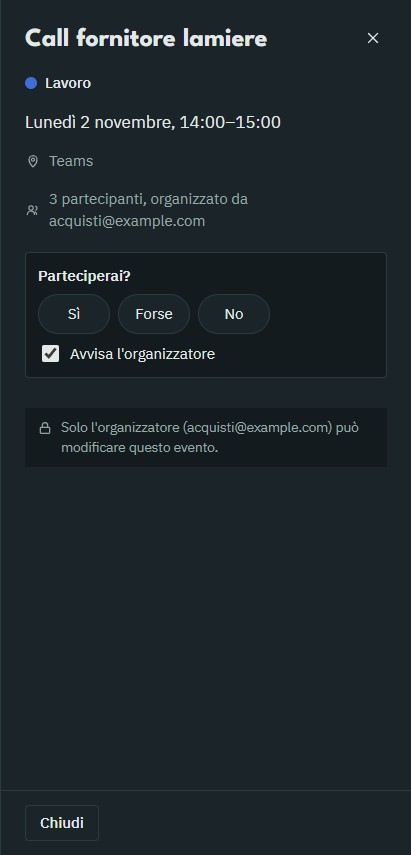
To “Going?” answer Yes, Maybe or No and choose whether to notify the organiser.
3
Series your way
For a recurring event, choose whether to change just that one, the following ones too, or all of them, and whether to notify the guests.
Today
Project meeting09:00–10:00 · Work (Google) · Meet
Join
Call with the supplier14:00–15:00 · Office (Microsoft 365) · Teams
in 4 h
Tomorrow
Dentist17:30–18:00 · Personal (Google)
tomorrow
An example: a Google calendar in blue and a Microsoft 365 one in green, in the same list.
The app
The screens, just as they are.
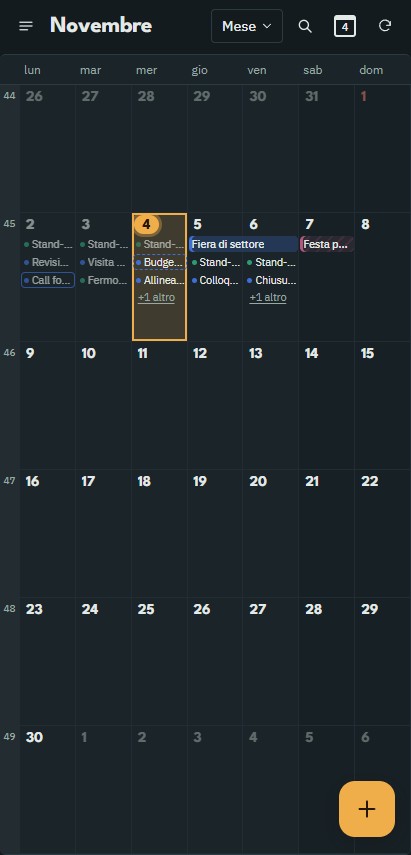
The monthEvents from all your calendars, with the week number.
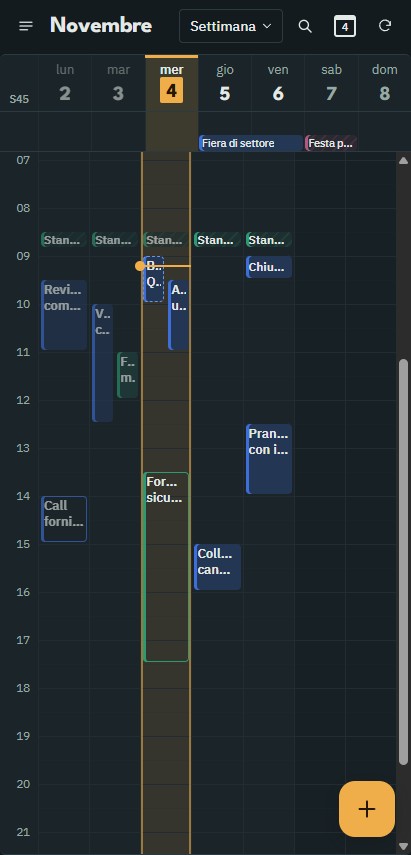
The weekPlus day, agenda and year: five views.
UpcomingToday and tomorrow, with the time left before each event.
The invitationAnswer Yes, Maybe or No and let the organiser know.
Screenshots of the portal with Crocevia's sample data.
What it does
Everything you need to keep your schedule together.
On your phone, even offline
With the Android app you see the periods you've already opened and create, edit or delete events even offline: changes are sent as soon as the connection is back. Agenda (the next 14 days) and Month widgets on the Home screen, event reminders.
Several accounts together
Work and home, Google and Microsoft: link all your accounts and turn on or off the calendars you want to see.
Five views
Day, week, month, agenda and year. Tap a day or an empty slot and create the event right there.
Join meeting
The event's Meet, Teams, Zoom or Webex link becomes a button, in the event details and in Upcoming.
Forgiving search
In the title, description and location, or by invited person. Capitals and accents don't matter, and a typo is allowed.
Weather on the days
Choose the city and the days (3, 5 or 7): MET Norway forecasts appear on the calendar.
Light or dark theme
Light, dark or as the system; in Italian or English.
Privacy
Your events stay in your calendars.
No copies of your eventsCrocevia reads and edits your calendars with the permission you give Google or Microsoft, but keeps no copies of them.
Revoke whenever you likeYou can remove access at any time from your Google or Microsoft account settings.
Delete your account in one tap“Delete account” in Settings deletes your Crocevia account and its data; your calendars stay in Google and Microsoft.
All in writingWhat we keep and for how long is in the privacy policy.
Questions
Frequently asked questions
Do I need a new account?
No: you sign in with your Google or Microsoft account. Then you link the other accounts whose calendars you want to see.
Where do the events I create end up?
Directly in the Google or Microsoft calendar you choose: you'll also find them in Google Calendar and Outlook.
Does it work offline?
With the Android app, yes: you see the periods you've already opened, and changes are sent as soon as the connection is back.
Will I get alerts twice?
Crocevia's reminders use the ones set in Google or Outlook. If you already get alerts from those apps, turn them off in Crocevia.


 Crocevia