Guida di Crocevia
- Entrare
- Calendari collegati
- Le viste
- Il menu a sinistra
- Eventi e inviti
- Cercare
- Meteo
- Promemoria, widget e senza rete
- Impostazioni
Entrare
Sul sito crocevia.tackora.it entri con il tuo account Google o Microsoft. Nell’app scegli come lavorare:
- Con il portale: lo stesso account del sito, gli stessi calendari sul telefono e sul PC.
- Direttamente dal telefono: l’app si collega da sola ai calendari Google e Microsoft, senza PC né portale; i dati restano sul telefono.
- Esplora con dati di esempio: per provare Crocevia con un calendario finto.
Al primo avvio i Primi passi ti mostrano Crocevia in quattro pagine da scorrere: li rivedi da Impostazioni → Primi passi.

Calendari collegati
Nel menu, Calendari collegati elenca gli account e i loro calendari: accendi e spegni quelli da vedere. Con Collega un account Google o Microsoft ne aggiungi un altro; se Google o Microsoft chiedono di nuovo l’accesso, tocca Ricollega.

Le viste
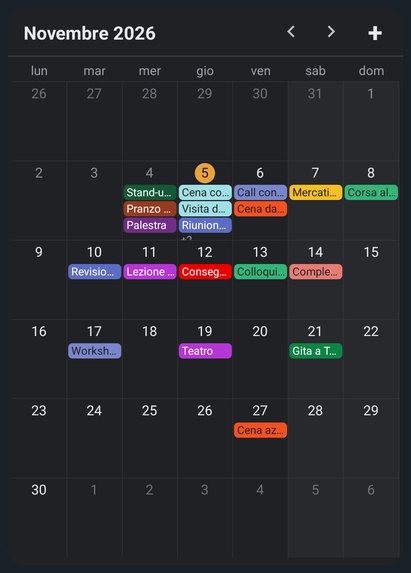
Giorno, Settimana, Mese, Anno e Agenda. Ogni evento ha il colore del suo calendario (o quello che gli hai dato in Google). Tocca un giorno o un’ora vuota per creare un evento lì.


Il menu a sinistra
- In arrivo: gli eventi di oggi e domani, con quanto manca. Se un evento ha una riunione online c’è l’icona per entrare.
- Mese: il calendario piccolo per saltare a una data.
- Ora: l’orologio con data e fuso.
- Impostazioni (l’ingranaggio): vedi sotto.

Eventi e inviti
- Nuovo evento: titolo, inizio e fine o tutto il giorno, calendario, luogo e descrizione. Viene salvato direttamente nel calendario Google o Microsoft scelto.
- Modifica: per un evento di una serie scegli se cambiare solo quello, anche i successivi o tutti. Se ci sono invitati puoi avvisarli della modifica.
- Inviti: alla domanda Parteciperai? rispondi Sì, Forse o No, e scegli se avvisare l’organizzatore.
- Entra nella riunione: se l’evento ha un link di Meet, Teams, Zoom o Webex, il pulsante lo apre (sul telefono nell’app della riunione, se è installata).
- Con il tasto destro (o tenendo premuto) su un evento: apri, duplica, elimina, apri in Google Calendar o Outlook.

Cercare
La lente cerca nel titolo, nella descrizione e nel luogo, oppure per persona invitata o organizzatore, in un periodo che scegli (di solito un anno prima e dopo oggi). Maiuscole e accenti non contano e un errore di battitura è ammesso.
Meteo
Nelle Impostazioni scegli la città e quanti giorni (3, 5 o 7): il tempo previsto compare sui giorni del calendario. Le previsioni sono di MET Norway, la città si cerca con OpenStreetMap.
Promemoria, widget e senza rete (app)
- Promemoria: le notifiche usano i promemoria impostati in Google o Outlook. Se ricevi già gli avvisi da quelle app, spegnili in Crocevia per non averli doppi.
- Widget: Agenda (i prossimi 14 giorni) e Mese, da aggiungere alla schermata Home del telefono.
- Senza rete: vedi i periodi già aperti e puoi creare, modificare ed eliminare eventi; le modifiche restano in attesa e partono appena torna la connessione.
Impostazioni
- Collega Google o Microsoft, lingua (italiano o inglese), aspetto chiaro, scuro o come il sistema.
- Città e giorni del meteo, promemoria (app).
- Il tuo account con Esci, Segnala un problema, informativa e assistenza.
- Elimina account: cancella l’account Crocevia e i suoi dati; i tuoi calendari restano in Google e Microsoft.
Hai una domanda? Guarda le domande frequenti o scrivi a support.crocevia@tackora.it.
Crocevia guide
Signing in
On crocevia.tackora.it you sign in with your Google or Microsoft account. In the app you choose: with the portal (the same account and calendars as on the PC), directly from the phone (the app connects to Google and Microsoft by itself and the data stays on the phone), or explore with sample data. The first time, First steps shows Crocevia in four swipeable pages; find them again in Settings → First steps.
Linked calendars and views
In the menu, Linked calendars lists your accounts and calendars: turn on the ones to see, link another Google or Microsoft account, reconnect when asked. Views: Day, Week, Month, Year and Agenda; tap an empty slot to create an event there.
The side menu
Upcoming (today and tomorrow, with a button to join online meetings), Month (a small calendar to jump to a date), Now (the clock) and Settings (the gear).
Events and invitations
Create an event in the Google or Microsoft calendar you choose; for a series choose this event, the following ones or all; notify the guests of a change; answer invitations with Yes, Maybe or No; join Meet, Teams, Zoom or Webex meetings with one tap; right-click or hold an event to open, duplicate, delete or open it in Google Calendar or Outlook.
Search, weather, app
Search by text or by person in a period you choose. Pick a city and 3, 5 or 7 days of weather (MET Norway). In the app: reminders from your Google or Outlook alerts, Agenda and Month widgets, and offline use with changes sent when the connection is back.
Settings
Language, light or dark appearance, weather, reminders, Sign out, Report a problem, privacy, support and Delete account (your calendars stay in Google and Microsoft). Questions: see the FAQ or write to support.crocevia@tackora.it.